How to Import YouTube Subtitles as Vocabulary Flashcards
You already watch YouTube in your target language. Maybe it's a cooking channel in Spanish, a tech reviewer in German, a travel vlogger in French. You pick up words here and there, but most of them slip away by the next day. The video was entertaining, but it didn't teach you anything permanent.
What if every video you watched could become vocabulary you actually retain? Learning from video activates dual coding - a visual scene paired with a word - creating stronger memories than text alone. The trick is getting the words out of the video and into a review system.
This guide covers how to turn YouTube subtitles into flashcards in Words on Repeat. For an overview of all input methods (URL, text, PDF, and YouTube), see the AI Flashcard Generator guide.
Method 1 - Paste a YouTube URL
The fastest method. Paste the video URL and the system fetches the subtitles automatically.
- Open the AI Extract page and select the YouTube tab
- Paste the YouTube video URL
- Set word count (how many words to extract) and difficulty level
- Click Extract
- The system fetches the video's subtitles automatically and runs the AI extraction
- Preview the results - each card shows a word, translation, and an example sentence from the video's actual dialogue
- Edit or remove cards you don't want, then click Save to add them to your deck
The extraction works with both auto-generated and manual subtitles. It fetches the full transcript text and sends it to the AI extraction pipeline, so the cards you get contain example sentences that were actually spoken in the video.
If subtitle fetching fails for a particular video (rare, but it can happen with region-restricted or unusually formatted videos), the system automatically falls back to Method 2 - it switches you to the Text tab with instructions to copy the transcript manually.
Method 2 - Paste the Transcript
When automatic fetching doesn't work, or you want to extract from a specific section of a video only, you can manually copy the transcript.
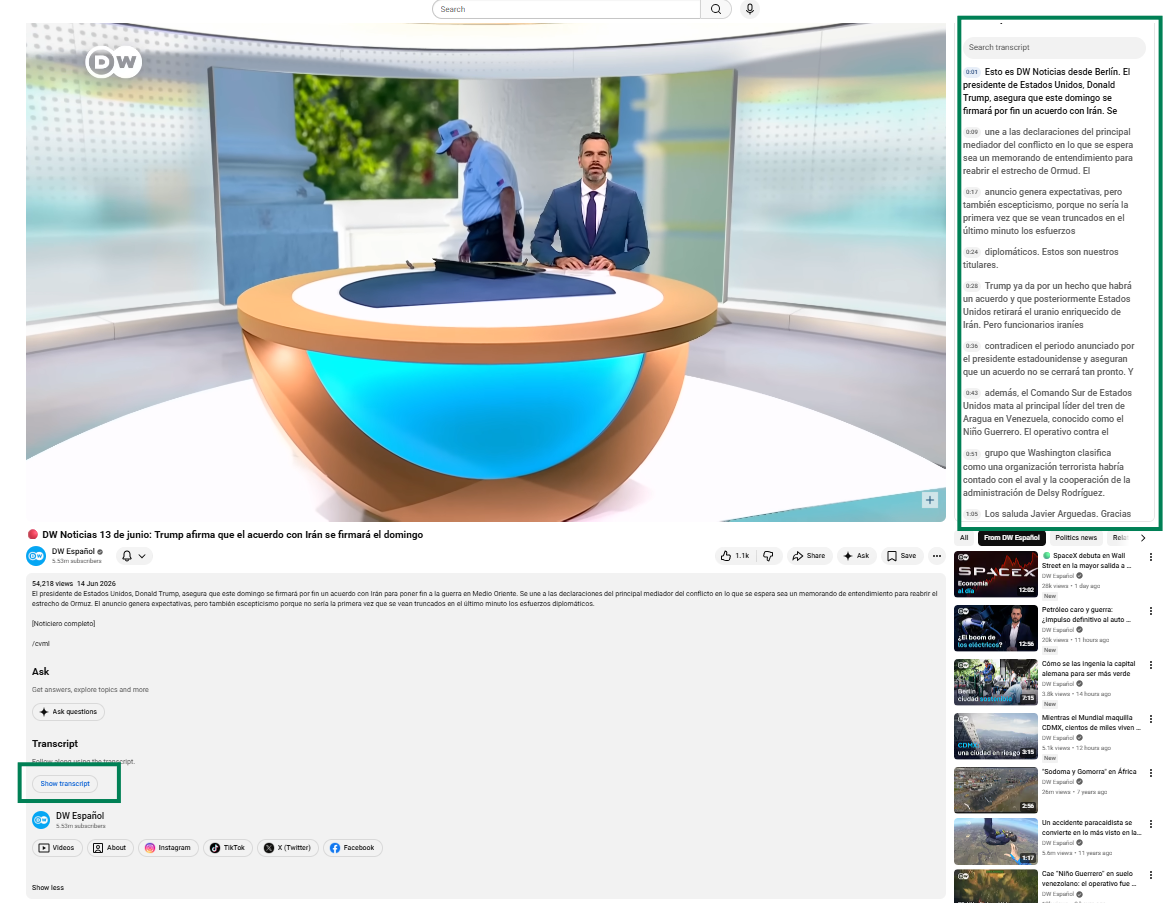
- On YouTube, click the "..." button below the video title, then select "Show transcript"
- The transcript panel opens on the right side of the video
- Select and copy the transcript text
- Go to the AI Extract page on Words on Repeat, select the Text tab
- Paste the transcript, set word count and difficulty, then click Extract
- Preview, edit, and save
This method works on any device and gives you more control - you can copy just a section of the transcript if you only want vocabulary from a specific part of the video.
Tips for Better Results
Not all YouTube videos produce equally good flashcards. The quality of the subtitles and the type of content both matter.
Choose the right videos. News, educational content, interviews, and vlogs with clear speech produce the best transcripts. Music videos, fast-paced comedy, and heavily edited content often have fragmented or inaccurate subtitles that make extraction harder.
Auto-generated vs manual subtitles. Both work. Manual subtitles (uploaded by the creator) are more accurate but rarer. YouTube's auto-generated captions have gotten quite good for major languages - the AI extraction handles minor transcription errors without problems.
Match difficulty to your level. Use the difficulty selector when extracting. "Basic" targets high-frequency, everyday words (best for A1-A2 learners). "Advanced" targets topic-specific, nuanced vocabulary (for B2+ learners). "All" extracts without filtering by difficulty.
Start with 10-15 words per video. Extracting too many words from a single video dilutes the contextual connection - each word gets less of your attention in the preview step, and the link between the word and the video scene weakens. You can always extract more later from the same transcript.
Tag with the video topic. Tags are auto-generated but editable. Adding a topic tag (e.g., "cooking", "news-spain", "tech") makes it easy to filter and review by subject later.
What You Get
Each flashcard created from a YouTube video includes the word, its translation, and an example sentence pulled from the video's actual transcript. The sentence isn't a generic dictionary example - it's what was actually said in the video.
When you review the flashcard days later, you won't just see a word and a translation - you'll remember the scene from the video, the speaker's voice, the topic they were discussing. That's dual coding in action: the verbal label (the word) plus the visual memory (the video scene) create two independent paths to recall the same meaning. Two memory codes are more durable than one.
YouTube import is available on all plans: Free (3/month), Pro (3/day), and Pro Max (5/day).
Frequently Asked Questions
Does it work with auto-generated subtitles?
Yes. YouTube's auto-generated captions aren't perfect, but the AI extraction handles minor transcription errors well. If a word is badly transcribed, you'll catch it in the preview step before saving. For major languages (Spanish, French, German, Portuguese, etc.), auto-generated subtitles are accurate enough for reliable extraction.
What about music videos or songs?
It works, but lyrics tend to be idiomatic, poetic, or use slang that doesn't appear in everyday speech. If you want to learn from songs, set difficulty to "Basic" to get the most broadly useful words. Alternatively, copy the lyrics and paste them into the Text tab on the AI Extract page - this gives you the same extraction without using your YouTube quota.
Can I use this on mobile?
Yes. The YouTube URL method (Method 1) works on any device. If automatic subtitle fetching doesn't work on mobile, use Method 2: open the video on YouTube, tap "Show transcript" (under the video description), copy the text, and paste it into the Text tab on Words on Repeat.
Pick a YouTube video you watched recently in your target language. Open the AI Extract page, select the YouTube tab, paste the URL, and your flashcards will be ready in seconds. You'll have vocabulary cards with the actual sentences from the video, ready for spaced repetition review. YouTube import is available on all plans - try it free.